
💳 Virtual Card Budgeting
Virtual cards let you split your money into separate budgets that cannot quietly borrow from each other. It is envelope budgeting, without the envelopes.
First, a quick clarification
"Virtual card" means two different things on the internet, and you have probably arrived here looking for one of them.
- A disposable card number issued by a bank or a service like a burner number for online shopping. Hooldbudget does not issue these. You cannot pay with a Hooldbudget virtual card.
- A budget envelope — a named pot that holds part of your money and tracks what goes in and out of it. That is what this page is about.
If you came here for the first kind, your bank is the place to look. If you came here because you want your money split into pots that actually hold their line, keep reading.
What is a Virtual Card?
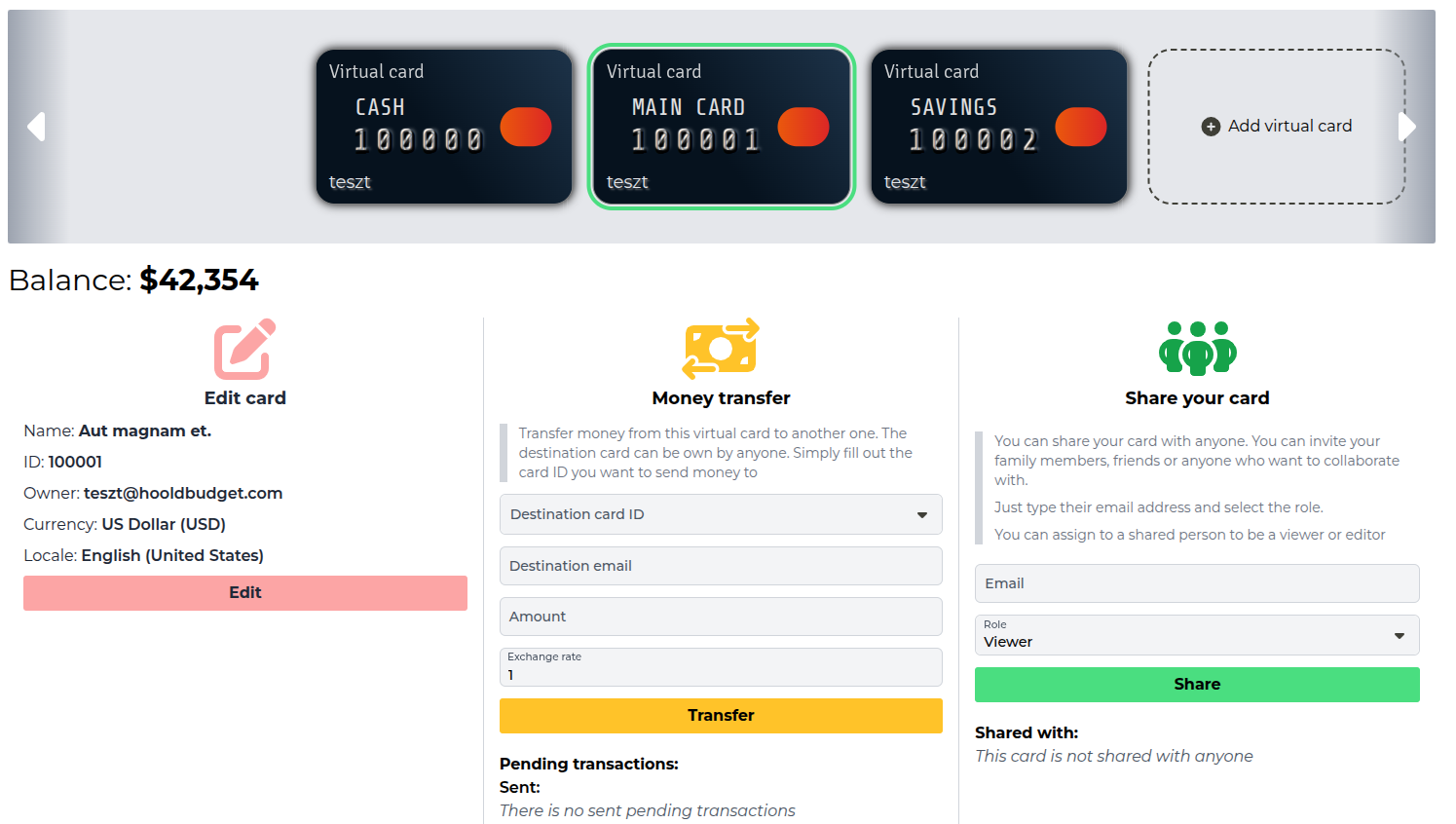
A virtual card is a container for your budget. Think of it as a separate wallet or bank account within Hooldbudget. Each card has its own:
- Balance
- Periods
- Groups (categories)
- Transactions
- Currency settings
Envelope Budgeting, Without the Cash
The envelope method is old, boring and unreasonably effective. You decide what each part of your money is for, you physically separate it, and when an envelope is empty you stop. No willpower required — the constraint does the work.
The catch is that almost nobody wants to run their life on cash any more. Your salary arrives digitally, your rent leaves digitally, and stuffing banknotes into paper envelopes is not a realistic system in a world of contactless payments and direct debits.
Virtual cards are the same idea with the cash removed. Instead of an envelope marked "Groceries" you have a card marked "Groceries", holding its own balance and its own transactions. The money in your actual bank account never moves. What changes is that you now know which portion of it is already spoken for.
| Paper envelopes | Virtual cards |
|---|---|
| Only works for cash spending | Works for card, transfer and cash alike |
| You have to visit an ATM to refill | Transfer between cards in a couple of taps |
| One person, one set of envelopes | Share a card with a partner or a housemate |
| Nothing is recorded once it is spent | Every movement stays in the history |
| Losing the envelope loses the money | Losing your phone loses nothing |
💡 Where most people start: two cards, not ten. One for the money that has to survive the month (rent, bills, groceries), one for the money you are allowed to enjoy. Add more only when a real decision keeps getting blurred.
When to Create Multiple Cards
💵 Cash vs Bank
Separate your cash wallet from your bank card to track each independently.
✈️ Travel Budget
Create a dedicated card for vacation expenses to stay within your travel budget.
👥 Shared Expenses
Share a card with roommates or family for joint household expenses.
💼 Business
Keep business expenses separate from personal spending.
Creating a Virtual Card
Step-by-step:
- Go to Cards page - Click "Cards" in the sidebar
- Click "Add virtual card" - The dashed tile at the end of the card row
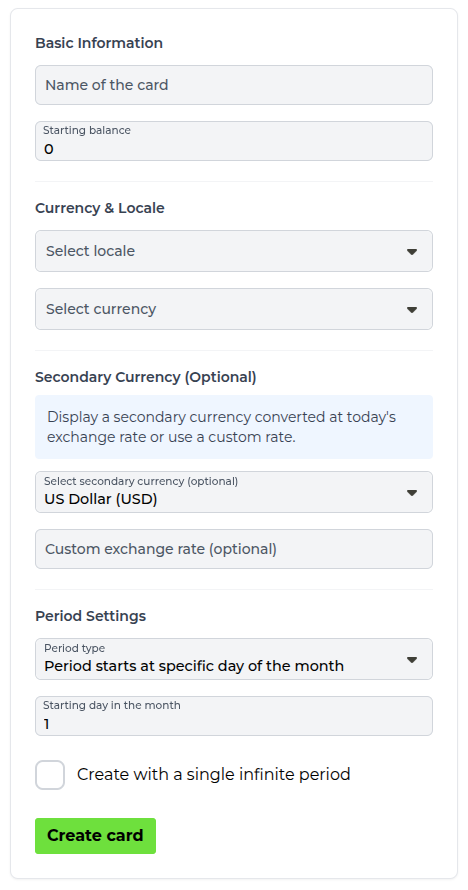
- Name of the card - e.g., "Cash Wallet", "Travel Fund" (up to 15 characters)
- Starting balance - Your current amount in this account
- Currency & Locale - The currency of the card, and the locale that controls number formatting
- Optional: Secondary Currency - Show every amount in a second currency too, at today's rate or a custom one
- Period Settings - Pick "Period starts at specific day of the month" and the starting day, or "Periods have a day range" and the number of days
- Optional: "Create with a single infinite period" - For a card you want to track without period boundaries
- Click "Create card"
Card Settings Explained
💰 Starting Balance
Enter how much money you currently have in this account. This becomes your baseline.
💱 Currency
All transactions in this card must use the same currency. Choose the currency you primarily use.
🌍 Locale
Controls how numbers are displayed (e.g., 1,000.00 vs 1.000,00). Choose your region's format.
💵 Secondary Currency (Optional)
Display all amounts in a second currency using real-time exchange rates. Great for travelers or expats.
📊 Custom Exchange Rate (Optional)
Override automatic exchange rates with your own rate for historical or projected conversions.
Sharing Virtual Cards
Share a card with family, partners, or roommates to collaborate on budgets.
How to share:
- Go to Cards page
- Select the card you want to share in the card row
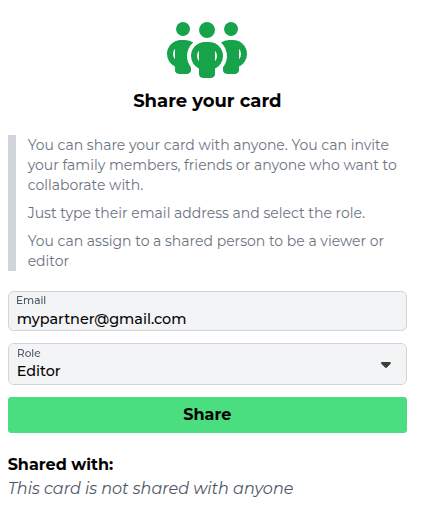
- Find the "Share your card" column
- Enter the email of the person you want to share with
- Choose role: Editor (can modify) or Viewer (read-only)
- Click "Share"
Everyone the card is shared with is listed underneath, with their role, and can be removed again from there.
💡 Tip: Use Viewer role for accountability partners who should see but not change your budget.
Transferring Money Between Cards
Move money between your virtual cards, just like transferring between real accounts.
How to transfer:
- Go to Cards page and select the card the money should leave from
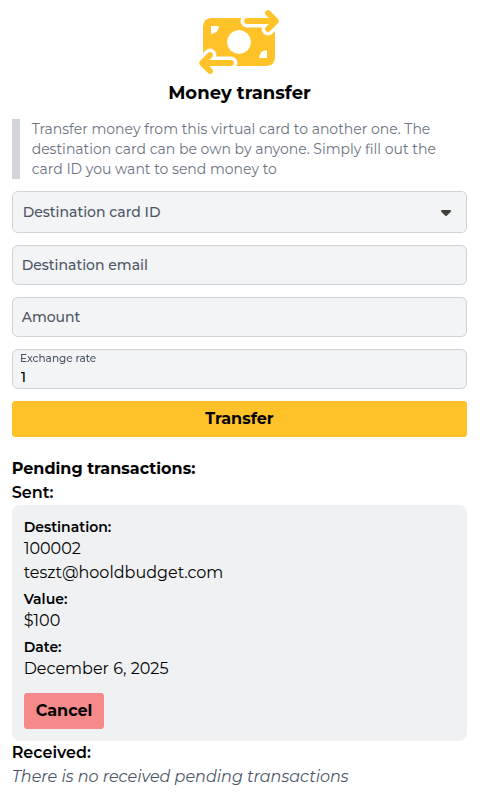
- Find the "Money transfer" column
- Pick the destination card ID - it can be one of your own cards or someone else's
- Enter the destination email if the card belongs to another person
- Enter the amount, and the exchange rate if the two cards use different currencies
- Click "Transfer"
A transfer to someone else's card stays pending until they accept it. Sent and received pending transfers are listed under the form, and you can cancel one you sent by mistake.
Managing Multiple Cards
Best Practices:
- Start with 1-2 cards, add more as needed
- Use clear, descriptive names (the name is limited to 15 characters)
- Keep cards for different purposes (not just different accounts)
- Switch between cards from the card selector in the top bar
- Review all cards weekly to stay on track
- Delete a card you no longer use - its periods and transactions go with it
Common Use Cases
🏠 Household Budget
Create one card for all household expenses. Share with family members as editors so everyone can log expenses.
💳 Cash + Bank
Two cards: one for cash wallet, one for bank card. Transfer between them when you withdraw cash from ATM.
🎯 Savings Goal
Create a card for a specific savings goal (vacation, car, emergency fund). Track progress separately.
🌍 Multi-Currency
If you earn in one currency but spend in another, create separate cards for each currency.
Frequently Asked Questions
Can I pay with a Hooldbudget virtual card?
No. A Hooldbudget virtual card is a budget envelope, not a payment instrument. It has no card number and no connection to a payment network. You keep paying with whatever you already use — your bank card, cash, a transfer — and record the spending against the right card afterwards.
Do I need a separate bank account for each virtual card?
No, and that is the point. Most people run several virtual cards against a single real bank account. The split lives in the app, not at your bank, so you can reorganise it whenever your life changes without filling in a single form.
How many virtual cards should I have?
Fewer than you think. Every card is a decision you have to keep making, so a card only earns its place if you would genuinely be annoyed to see those two kinds of spending mixed together. Two or three is a healthy setup. Ten is usually a sign that categories, not cards, are the right tool — see the groups and categories guide.
What happens when a virtual card runs out of money?
Nothing is blocked — the app will not decline a real payment, because it is not in the payment path. The balance simply goes negative and stays visible, which is the information you actually wanted. From there you either transfer money in from another card, or you accept the overspend and adjust the next period.
Can two people use the same virtual card?
Yes. Share the card by email and choose Editor if the other person should log spending, or Viewer if they should only see it. A shared household card plus a private card each is the most common couples setup — see the collaboration guide.
Is this the same as envelope budgeting?
It is the same idea, carried out digitally. You are still deciding in advance what each portion of your money is for, and still letting an empty envelope end the argument. The difference is that the money never has to leave your bank account for the method to work.
Ready to Organize Your Budgets?
Create your first virtual card and start tracking your finances.
Create Virtual CardNext Guide:
Periods & Budgeting Guide