
🚀 Getting Started with Hooldbudget
Welcome! This guide will help you set up your first budget in just 5 minutes. Let's get started on your journey to better financial management.
⏱️ Time Required: 5 minutes
By the end of this guide, you'll have a working budget and your first transaction logged.
Step 1: Create Your First Virtual Card
A virtual card is like a container for your budget. Think of it as your wallet or bank account.
How to create:
- Click "Start without account" or log in to your dashboard
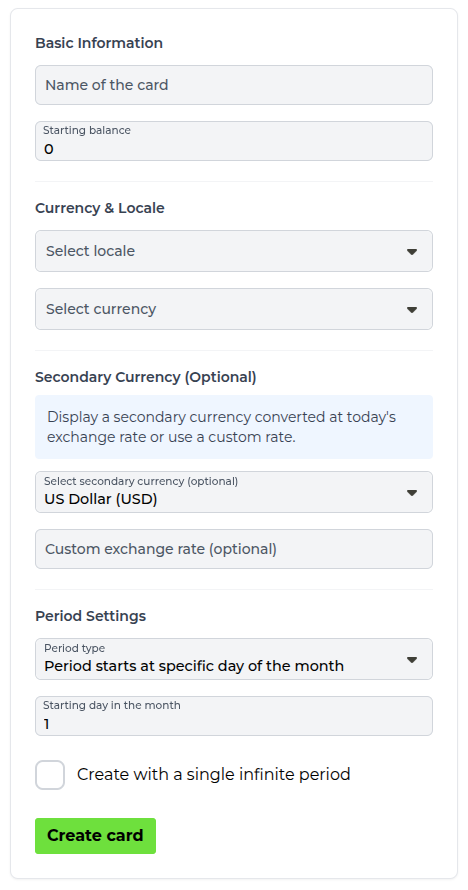
- Go to Cards and click "Add virtual card"
- Enter a name (e.g., "My Wallet", "Main Budget", "Bank Account")
- Set your starting balance (your current money amount)
- Choose your currency and locale
- Under Period Settings pick "Period starts at specific day of the month" and set the day you get paid
- Click "Create card"
💡 Tip: Start with one card for your main spending. You can add more cards later for different purposes.
Step 2: Understand Your First Period
After creating your card, Hooldbudget automatically creates your first budgeting period. A period is a time frame for your budget (usually one month).
What you'll see:
- Start Date: Today (or your chosen payday)
- End Date: One month from start date
- Balance: Your starting balance
- Groups: Pre-created expense and income categories
Step 3: Explore Default Groups
Groups help you categorize your spending. Hooldbudget creates default groups to get you started:
📤 Expense Groups
- 🏠️ House
- 🥣 Food
- ⛽️ Fueling
- 👕 Clothes
- 🚗 Car service
- 🚌 Public transportation
- 🎥 Entertainment
- ⚽️ My hobby
- 🟢 Other
📥 Income Groups
- 📜 Work
You can rename, delete, or add new groups anytime in the Planning page.
Step 4: Log Your First Transaction
Now let's record your first expense or income!
How to add a transaction:
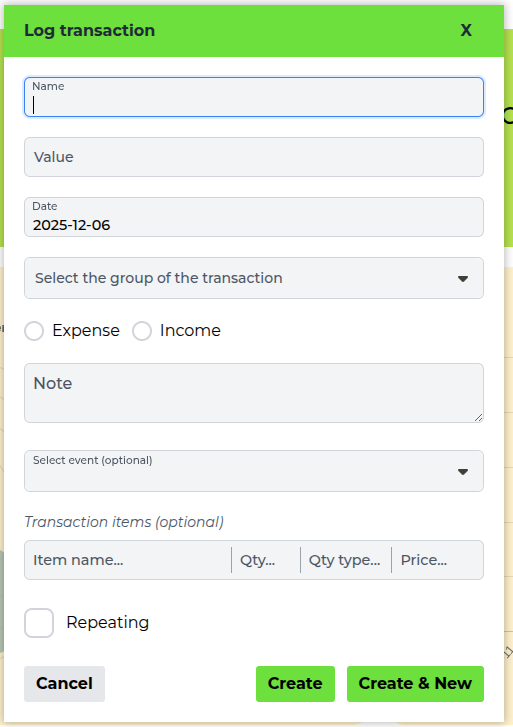
- Click the red "Log transaction" button in the bottom right corner
- Enter the transaction name (e.g., "Grocery shopping", "Salary")
- Enter the value
- Select the date (defaults to today)
- Choose the group of the transaction (e.g., "Food" for groceries)
- Pick Expense or Income
- Optional: add a note, link it to an event, or break it down into items
- Click "Create" - or "Create & New" to keep logging
✅ Success! You've logged your first transaction. Your balance will update automatically.
Step 5: Check Your Dashboard
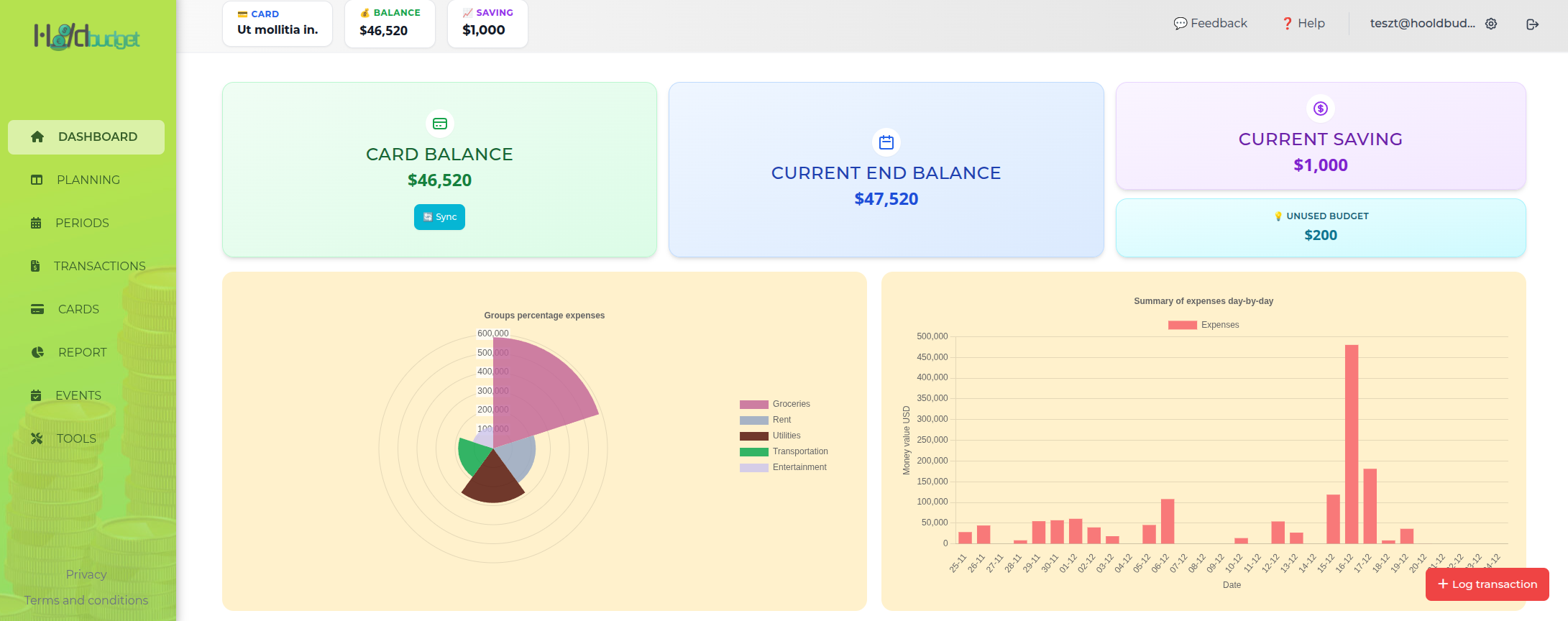
Go to the Dashboard to see your financial overview:
What you'll see:
- Card balance: Your money on this card right now
- Current end balance: What the card is projected to end the period with
- Current saving: What you have put aside so far in this period
- Unused budget: Budgeted money you have not spent yet
- Upcoming transactions: What is still due before the period ends
- Charts: Group percentages and a day-by-day expense summary
🎯 Quick Start Checklist
- ✓ Created your first virtual card
- ✓ Understood periods and default groups
- ✓ Logged your first transaction
- ✓ Explored the dashboard
🚀 Next Steps
1. Log More Transactions
Add your recent expenses and income to get a complete picture.
2. Set Budgets
Go to Planning and set budget amounts for each group.
3. Plan Ahead
Create future periods and plan your upcoming expenses.
Need Help?
Explore our other guides to learn more about specific features:
Next Guide:
Virtual Cards Guide