
💰 Transactions Guide
Transactions are the heart of your budget. Learn how to log and manage every penny you earn and spend.
What is a Transaction?
A transaction is any money movement - income you receive or expenses you pay. Each transaction includes:
- Name: What the transaction is for
- Value: How much money
- Date: When it happens - this decides which period it lands in
- Group: Category (Food, Rent, Salary, etc.)
- Type: Income or Expense
- Note: Optional details
- Event: Optionally attach it to an event like a trip or a wedding
- Items: Optional line-by-line breakdown
Adding a Transaction
Quick Method:
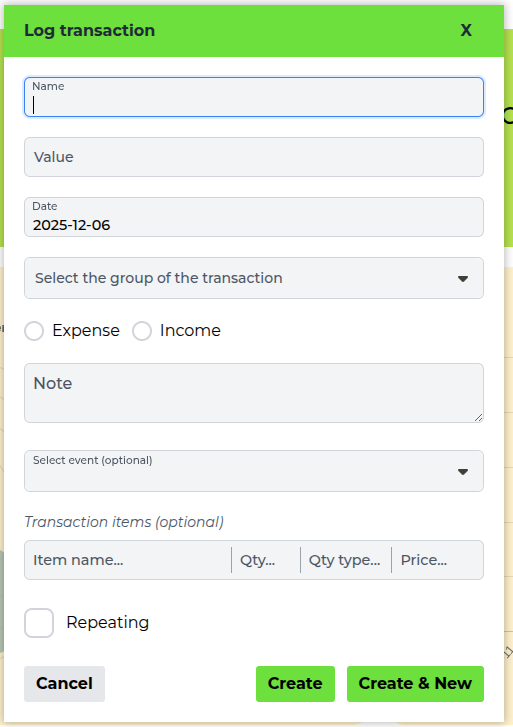
- Click the red "Log transaction" button in the bottom right corner, from anywhere in the app
- Enter transaction name (e.g., "Grocery shopping")
- Enter value (e.g., 45.50)
- Select date (defaults to today)
- Choose the group of the transaction (e.g., "Food")
- Pick Expense or Income
- Click "Create", or "Create & New" to immediately log another one
⚡ Pro Tip: Use keyboard shortcuts: Ctrl+Enter to save, Ctrl+Shift+Enter to save and create another.
Transaction Types
📤 Expense
Money you spend. Decreases your balance.
Examples: Groceries, rent, gas, entertainment
📥 Income
Money you receive. Increases your balance.
Examples: Salary, freelance payment, gift
🔄 Transfer
Moving money between virtual cards.
Example: ATM withdrawal (bank to cash)
💹 Sync
Balance correction to match reality.
Used when your tracked balance differs from actual
Transaction Items (Itemized Expenses)
Break down a transaction into individual items. Perfect for grocery shopping or restaurant bills.
Example: Grocery Shopping
Transaction: Grocery Shopping - $87.50
- • Milk - $4.50
- • Bread - $3.00
- • Chicken - $12.00
- • Vegetables - $15.00
- • Snacks - $8.00
- • Other items - $45.00
💡 Tip: Transaction items are optional but help you understand exactly where money goes.
Editing Transactions
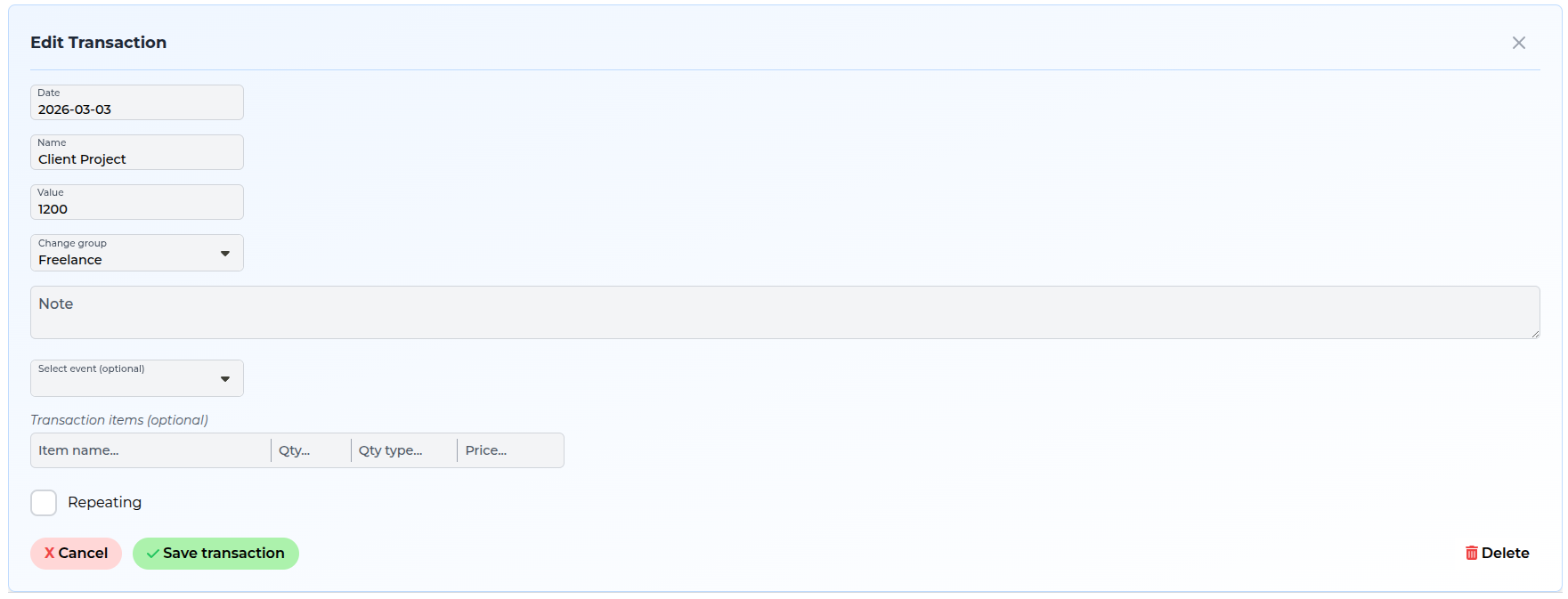
How to edit:
- Go to Transactions page or Planning page
- Click on the transaction you want to edit
- Modify any field (name, amount, date, group, etc.)
- Click "Save"
Deleting Transactions
Made a mistake? You can delete transactions anytime.
⚠️ Warning: Deleting a transaction is permanent and will affect your balance calculations.
Transactions That Have Not Happened Yet
You do not mark a transaction as planned - the date does it for you. Give a transaction a due date in the future and Hooldbudget treats it as money that is still coming, not money already gone.
What that gives you:
- It shows up under Not realized on the Planning page, next to what you have actually spent
- It counts towards the projected current end balance, so you can see the month's real ending before it arrives
- It appears in Upcoming transactions on the dashboard with a "in 3 days" style countdown
- Once its date passes it becomes Realized automatically - there is nothing to tick off
Note: "Pending" in Hooldbudget means something narrower - a money transfer sent to another person's card that they have not accepted yet. You can see sent and received ones on the Cards page.
Viewing Transactions
Access your transactions in multiple ways:
📊 Dashboard
Upcoming transactions and the period's charts
📋 Transactions Page
Full list with search and filters
📅 Planning Page
Transactions organized by groups
Filtering & Searching
The Transactions page lists every transaction on the card with a filter row above the table. You can narrow the list by:
- Title: Search transactions by name
- Due date: A from-to range for when the money moves
- Created at: A from-to range for when it was logged
- Group: Search by category
- Value: A from-to range for the amount
- Transaction type: All, income only or expense only

The header shows the total number of transactions matching your filters, and Per page controls how many are listed at a time. Tick the checkboxes on the left to select several transactions and delete them in one go.
Best Practices
- ✓ Log immediately: Record transactions as they happen to avoid forgetting
- ✓ Use descriptive names: "Walmart groceries" instead of just "Shopping"
- ✓ Add notes: Include details you might need later
- ✓ Review weekly: Check your transactions to catch any mistakes
- ✓ Use correct dates: Log transactions on the day they actually occurred
Start Tracking Your Money
Log your first transaction and see your budget come to life.
Log a transactionNext Guide:
Repeating Transactions Guide